Tutorial
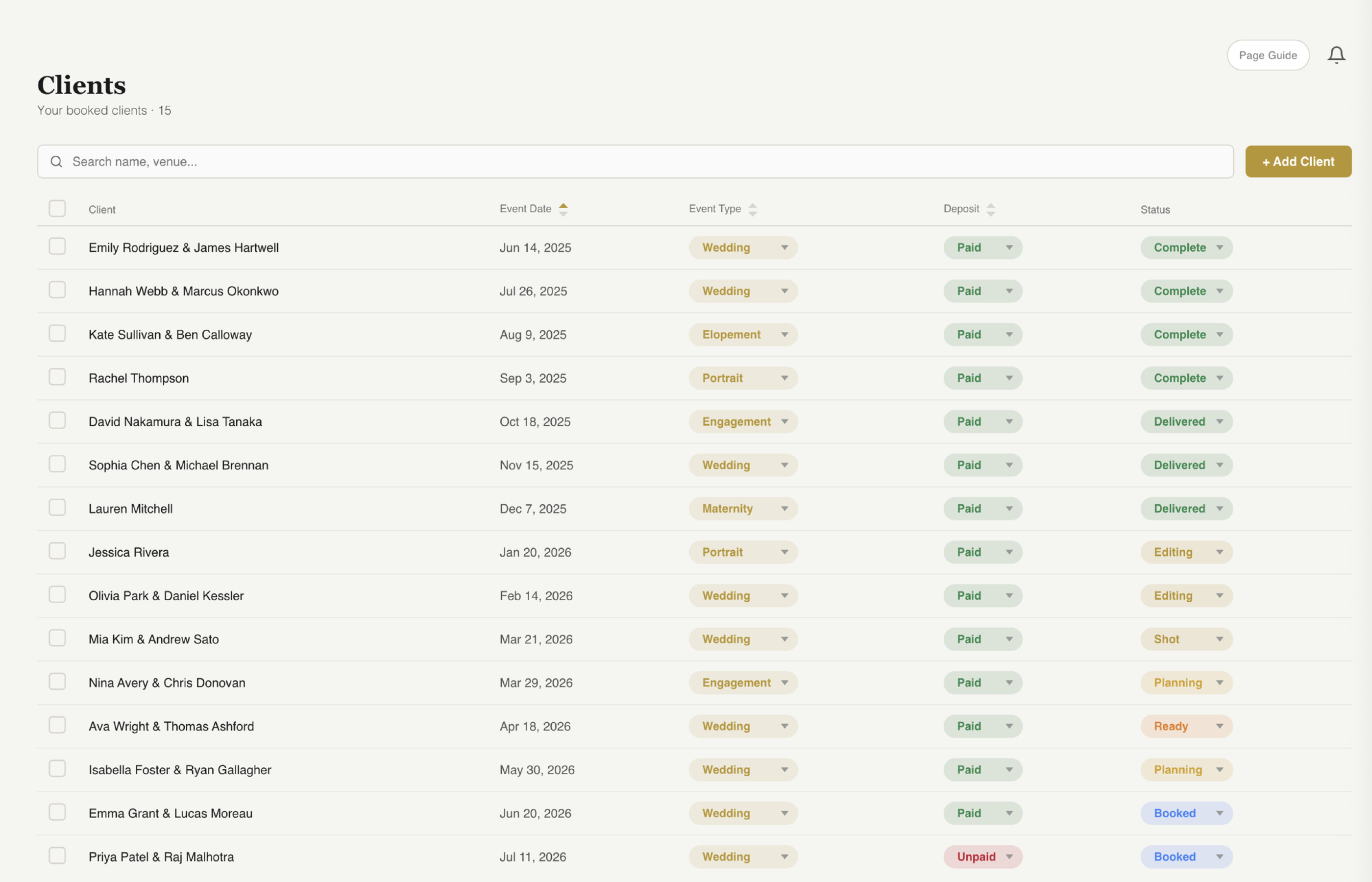
Once a lead is booked, everything lives on the client page — documents, gallery, notes, team, invoices, and communication history.
When you book a lead, they move to your Clients page. All their inquiry details, emails, and notes carry over automatically.
Everything about a client lives in one place. Tabs across the top give you quick access to documents, gallery, notes, team, and more.
Contracts, questionnaires, and any files associated with the client. See signing status at a glance. Resend or create new documents in one click.
Upload and deliver galleries directly through fstop. Clients access their gallery through the portal — no separate gallery platform needed for basic delivery.
Private notes for you and your team. Jot down details from consultations, shot list preferences, or anything you want to remember on the day.
Assign second shooters or assistants to the client. Everyone on the team can see the client details, timeline, and notes.
See every invoice, payment status, and balance at a glance. Send reminders or create new invoices without leaving the client page.
Every email sent through fstop is logged on the client page. Full history of your communication so nothing gets lost.
Key Takeaways
Documents, gallery, notes, invoices, and communication — all on one page.
Assign team members and share client details so everyone shows up prepared.
Every email, contract, and payment is logged so you never lose context.
Try fstop free for 7 days.