Tutorial
Set your availability, let clients book consultation calls, and manage your calendar all from fstop.
Choose which days and hours you're available for calls. Block off shoot days, editing days, or personal time so clients only see open slots.
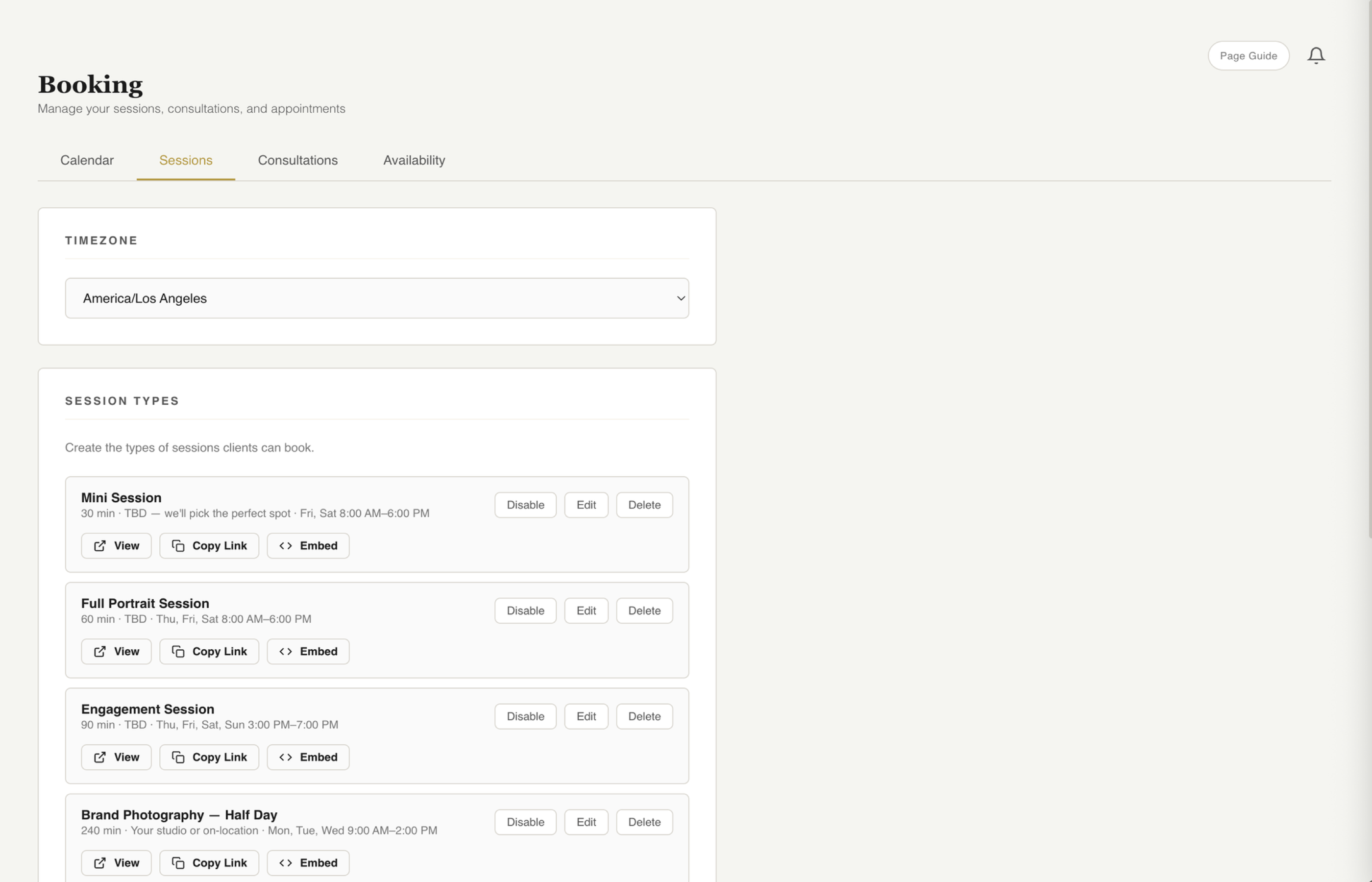
Set up different appointment types like consultation calls, mini sessions, or planning meetings. Each type can have its own duration and description.
Get a clean booking URL you can share anywhere — your website, email signature, or Instagram bio. Clients pick a time that works and book instantly.
No back-and-forth emails to find a time. Clients see your real availability and book a slot themselves. You get notified immediately.
See all upcoming appointments in one view. Reschedule or cancel if needed. Add notes before the call so you're prepared.
Add buffer time between appointments so you're never double-booked or rushing between calls. Set it once and it applies automatically.
Appointments sync with your calendar so everything stays in one place. No more checking two apps to see if you're free.
Key Takeaways
Share a link, clients pick a time. No email ping-pong required.
Never feel rushed between calls — automatic spacing keeps your day manageable.
Appointments sync to your calendar so you always know what's next.
Try fstop free for 7 days.